Capabilities
Ask for the outcome. It handles the steps.
It reads across the apps you've connected, finds the paragraph in your own documents, looks up what it doesn't know, and comes back with the work done.
It already has the context
It sees the whole picture.
Connect the apps you work in and it looks at what it needs — your mail, your calendar, your tasks, your documents — so the answer comes from your actual week rather than a guess.
Answers from your own documents
Early accessSee exactly where that came from.
Point it at the places your team keeps its documents, or upload the files themselves — each one checked for malware before it's read — and answers start coming from what your own people have written, with the sources attached. Open one to read the exact wording behind the answer, the page it sits on, and the document itself.
- Only the places you choose and the files you upload are ever read, and places stay up to date
- Each document named once, however often it was quoted
- Open the real file behind the answer, whether it lives in SharePoint or you uploaded it
Early access means it works and we use it ourselves every day. It's still moving, so bits of it will change. When it lets you down, tell us — that's the deal.
When it doesn't know
It goes and looks.
Some questions are newer than anything it was taught. When yours is, it searches the public web, reads the pages it finds, and answers from those — naming each one underneath, so you can go and check rather than take its word. And when a link leads to a file rather than a page — a PDF, a Word document, a spreadsheet, a picture, even a link that simply starts a download — it reads the file too.
- It searches only when the question actually needs it
- You see what it searched for, while it searches
- Send it a link to a PDF, a Word document or a spreadsheet, and it reads the file
- The pages and files the answer rests on are named underneath
- Turn it off in one chat, for one agent, or for everything you start from now on
It actually does it
Ask, and it's done.
It doesn't stop at telling you what to do. It writes the reply, moves the meeting, sets the nudge for later, tidies up who can see what — and hands you the finished thing.
It hands you the file
Early accessAsk for the deck, or the PDF. Get the file.
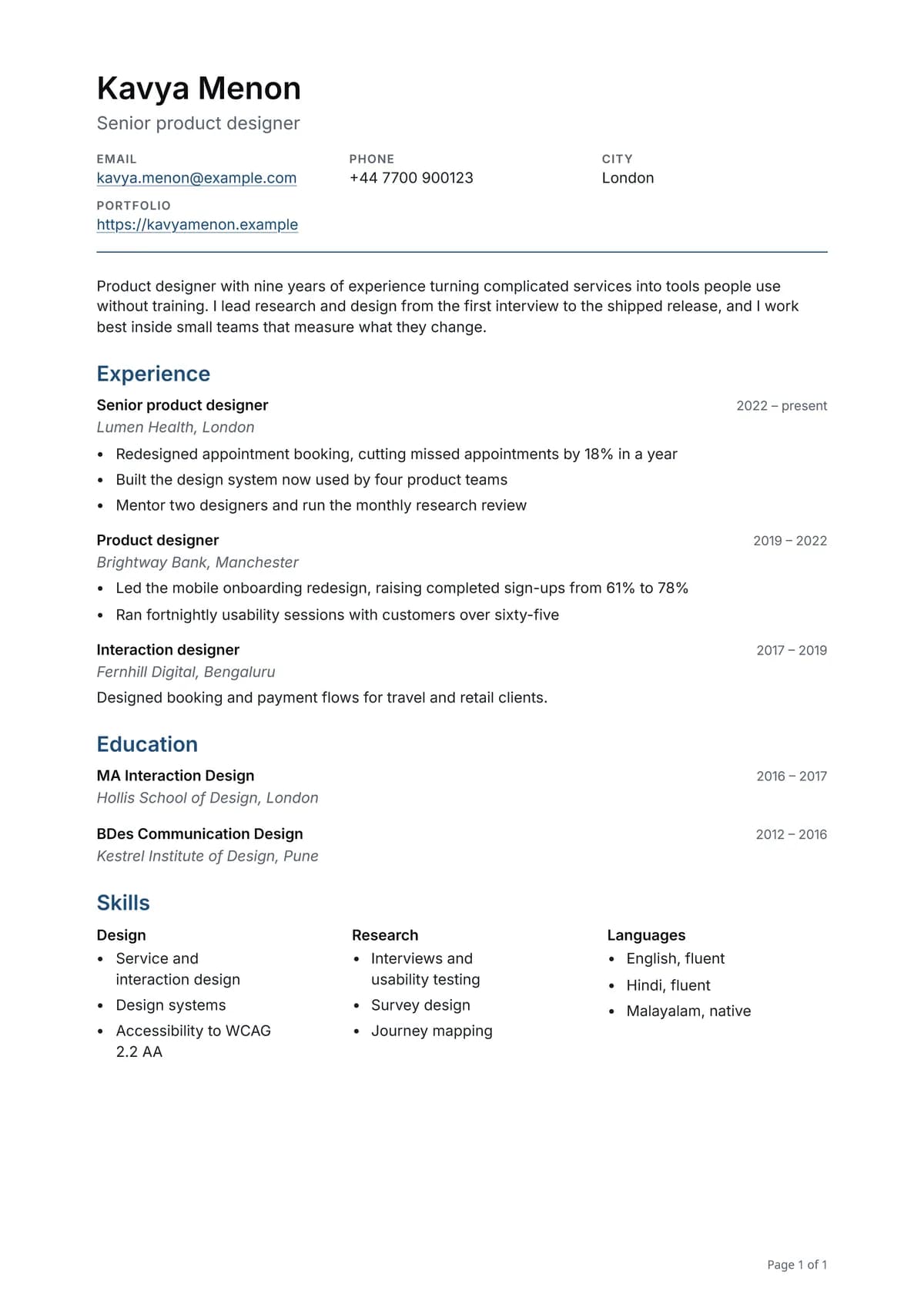
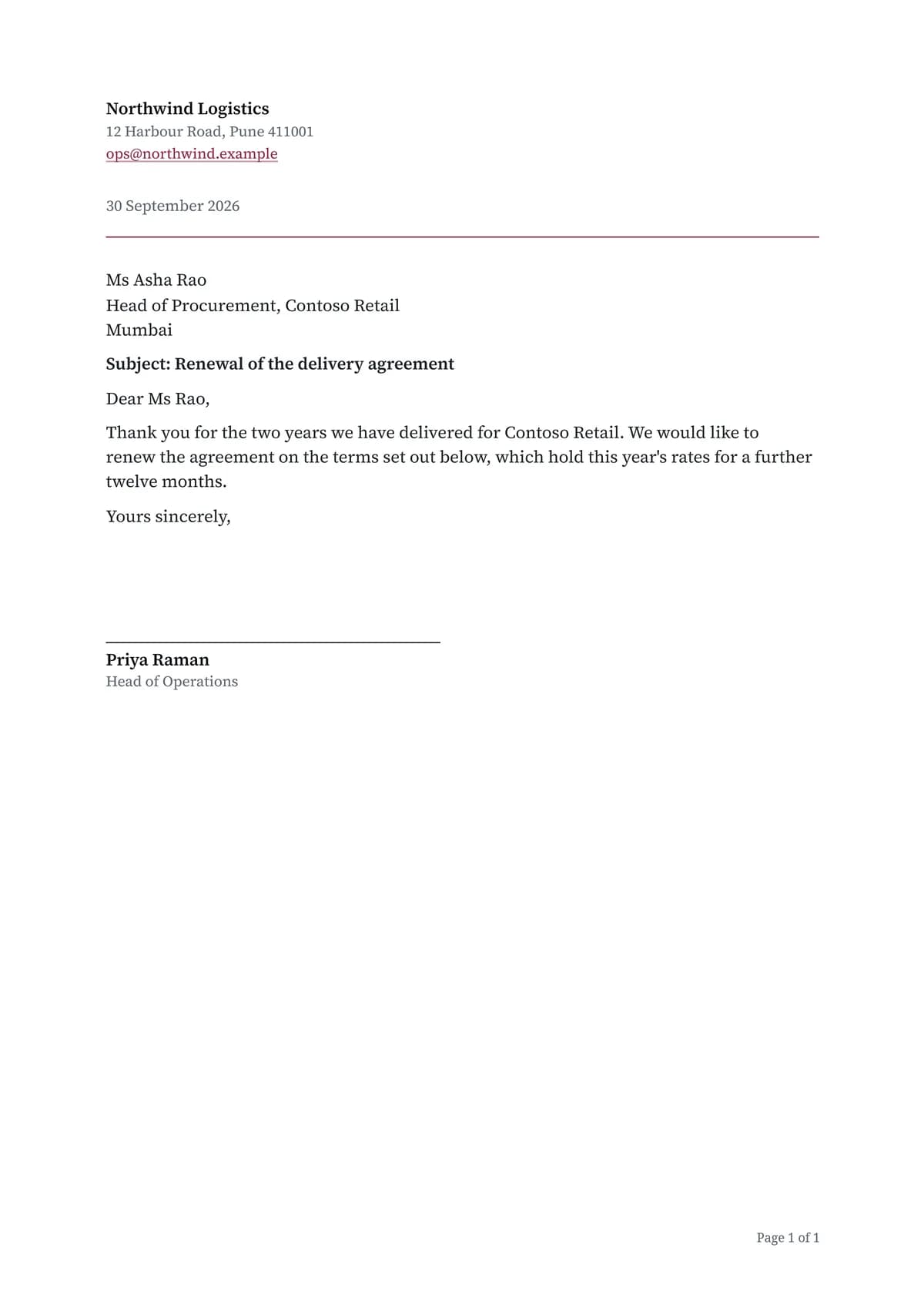
Say what it is about and who it is for. Ask for slides and it hands back a PowerPoint file you can open, edit and send on. Ask for a report, a proposal, a quote, a résumé or a letter and it hands back a PDF laid out like a printed one — the title at the top of the first page, numbered pages, a contents page when it runs long, and lines to sign where they belong. Ask in the same chat, and a deck it made becomes a PDF too.
- Every slide and every page laid out to suit what is on it
- Charts drawn from your own figures, ready to edit in a deck
- Photographs that are free to use, credited at the end
- It appears under the answer, and stays in a list of its own
Three looks
The same words, dressed three ways.
Ask for one by name and your deck is built that way. Each is a design of its own rather than a change of colour, so whichever you pick, the slides look like they came from the same place as everything else you have seen from us.
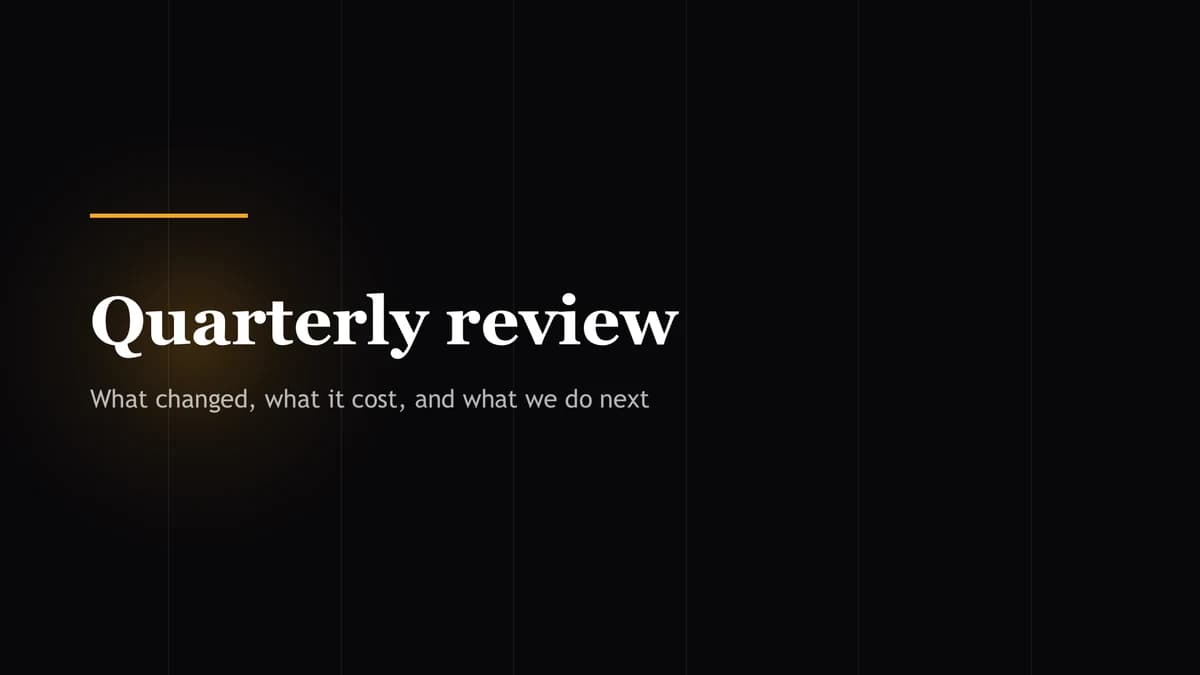
Warm light on near-black. What a deck uses unless you say otherwise, and the one to pick for a screen in a dimmed room.
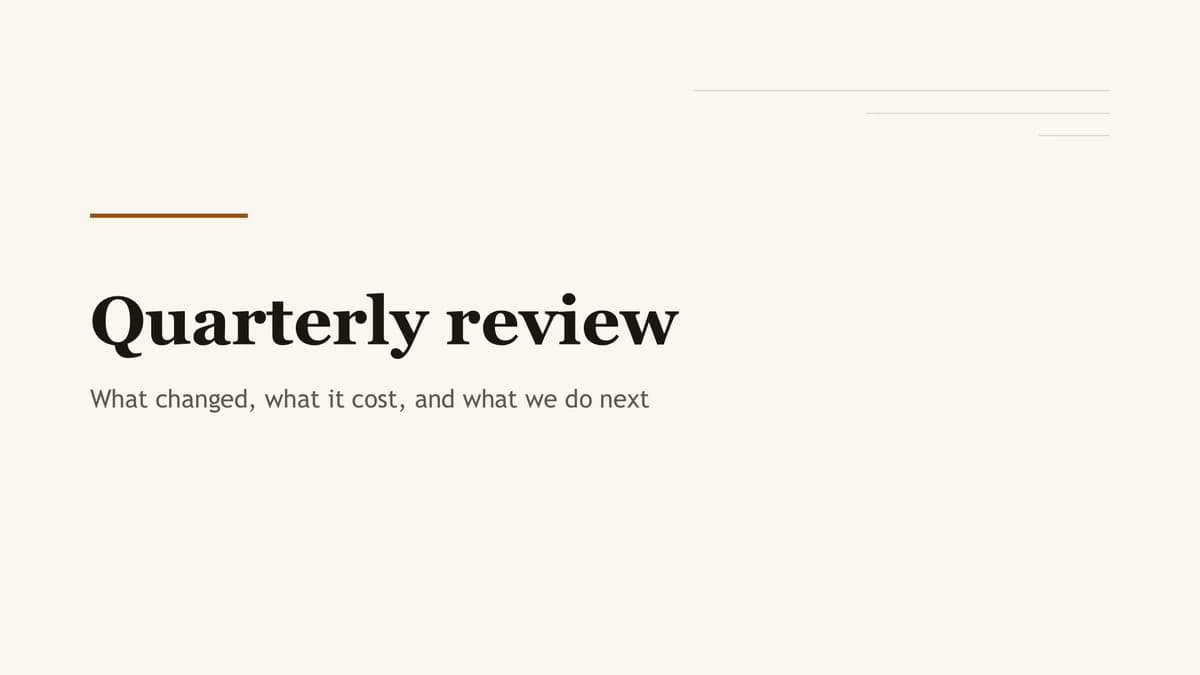
Ink on warm paper. The one for a room with the lights up — or for a deck that will be read as much as presented.
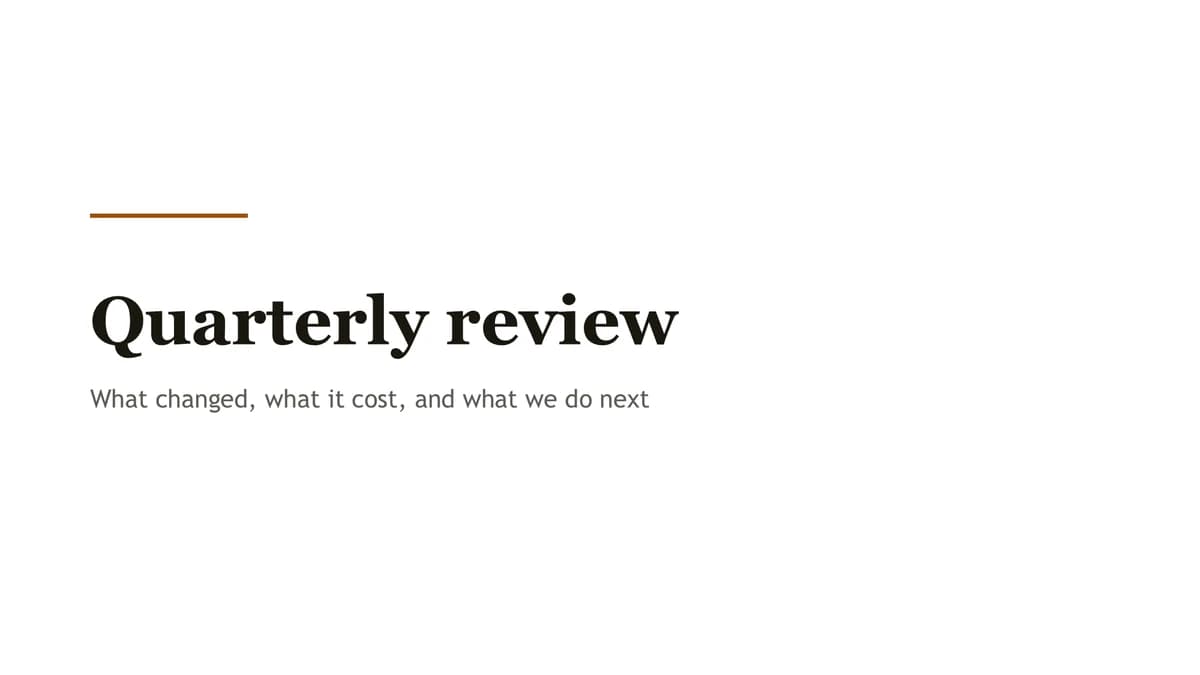
White, quiet, and nothing laid down that a printer has to fill in. For the copies you hand round the table.
Set for print
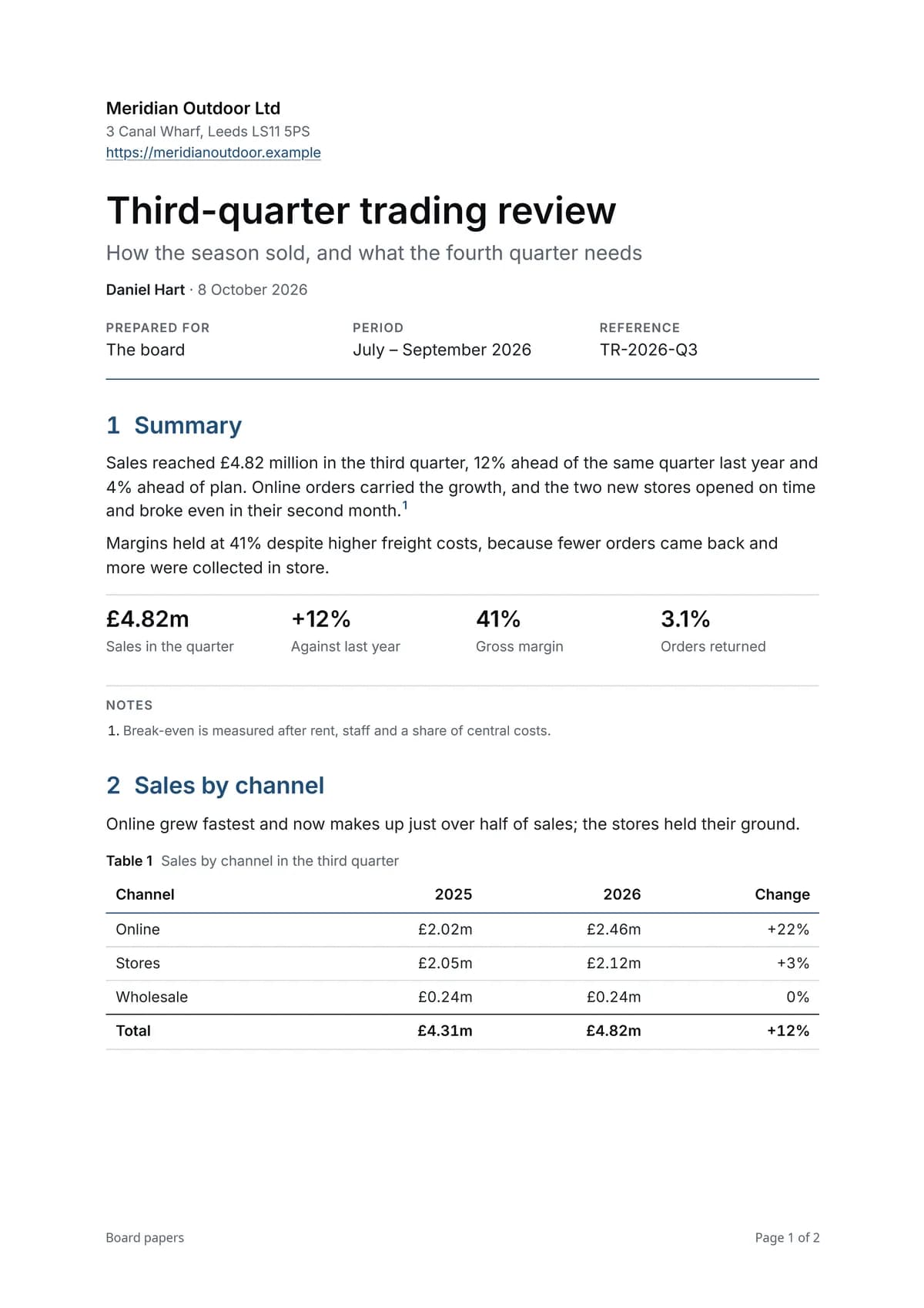
Every PDF it writes, laid out like a printed page.
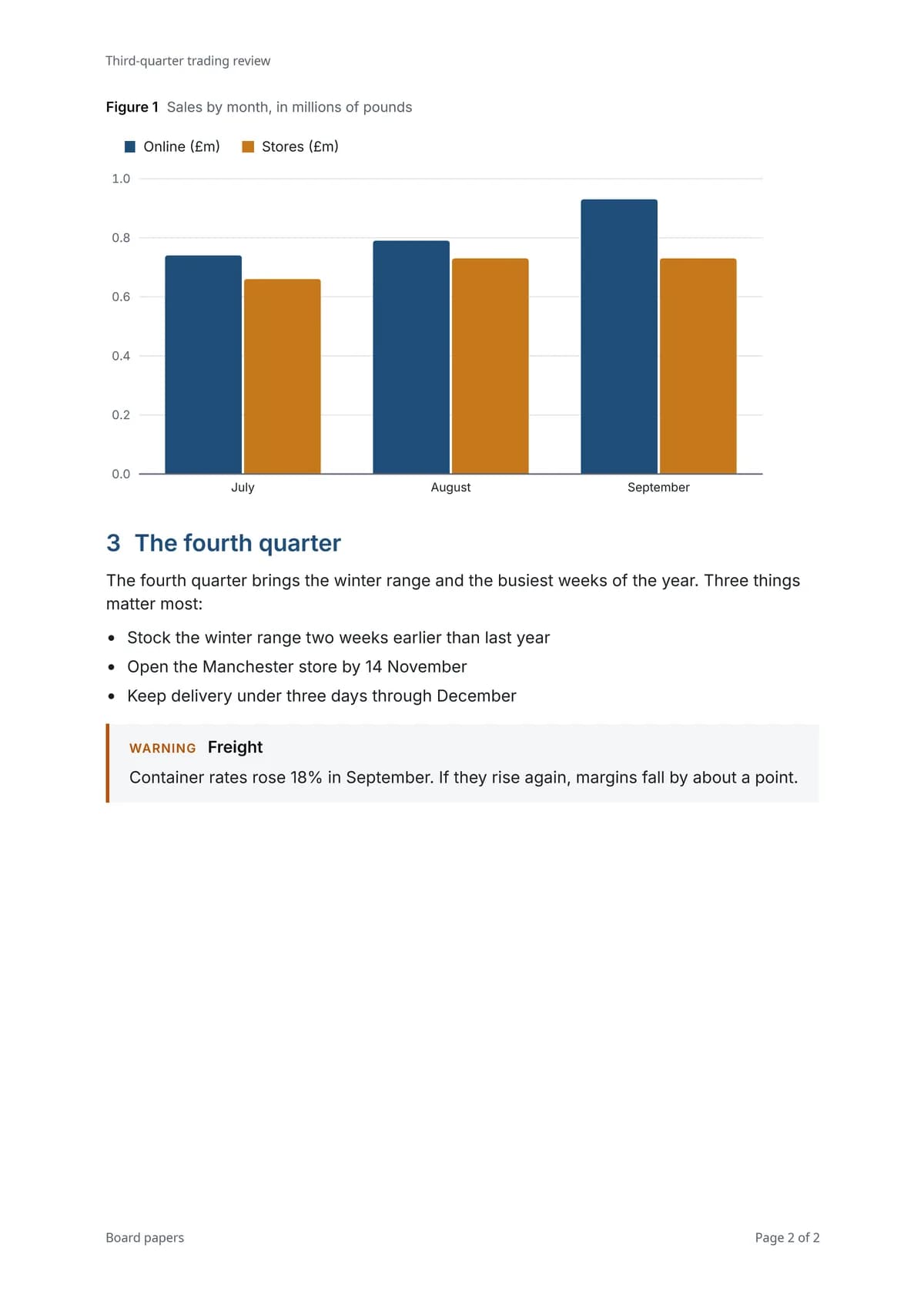
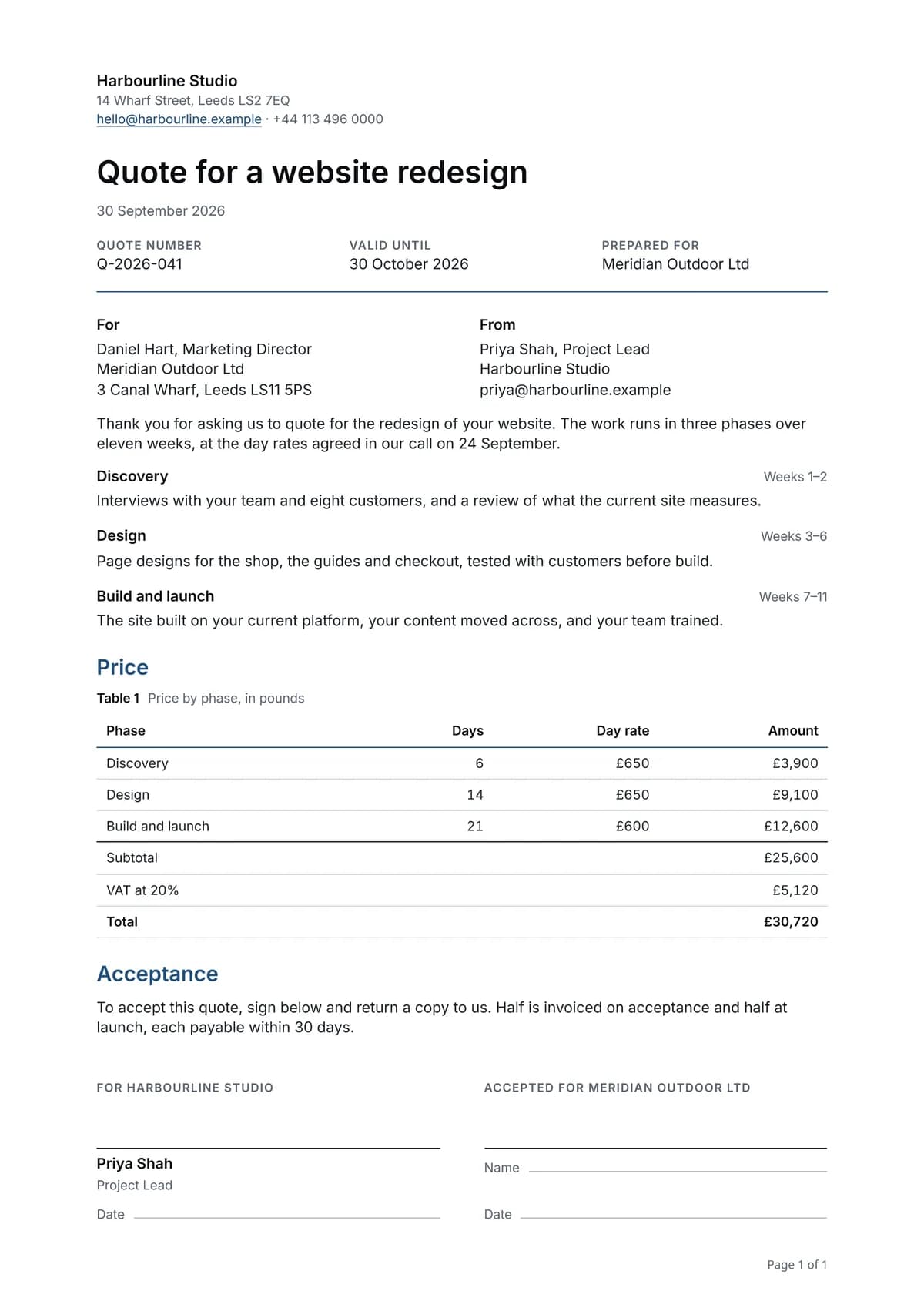
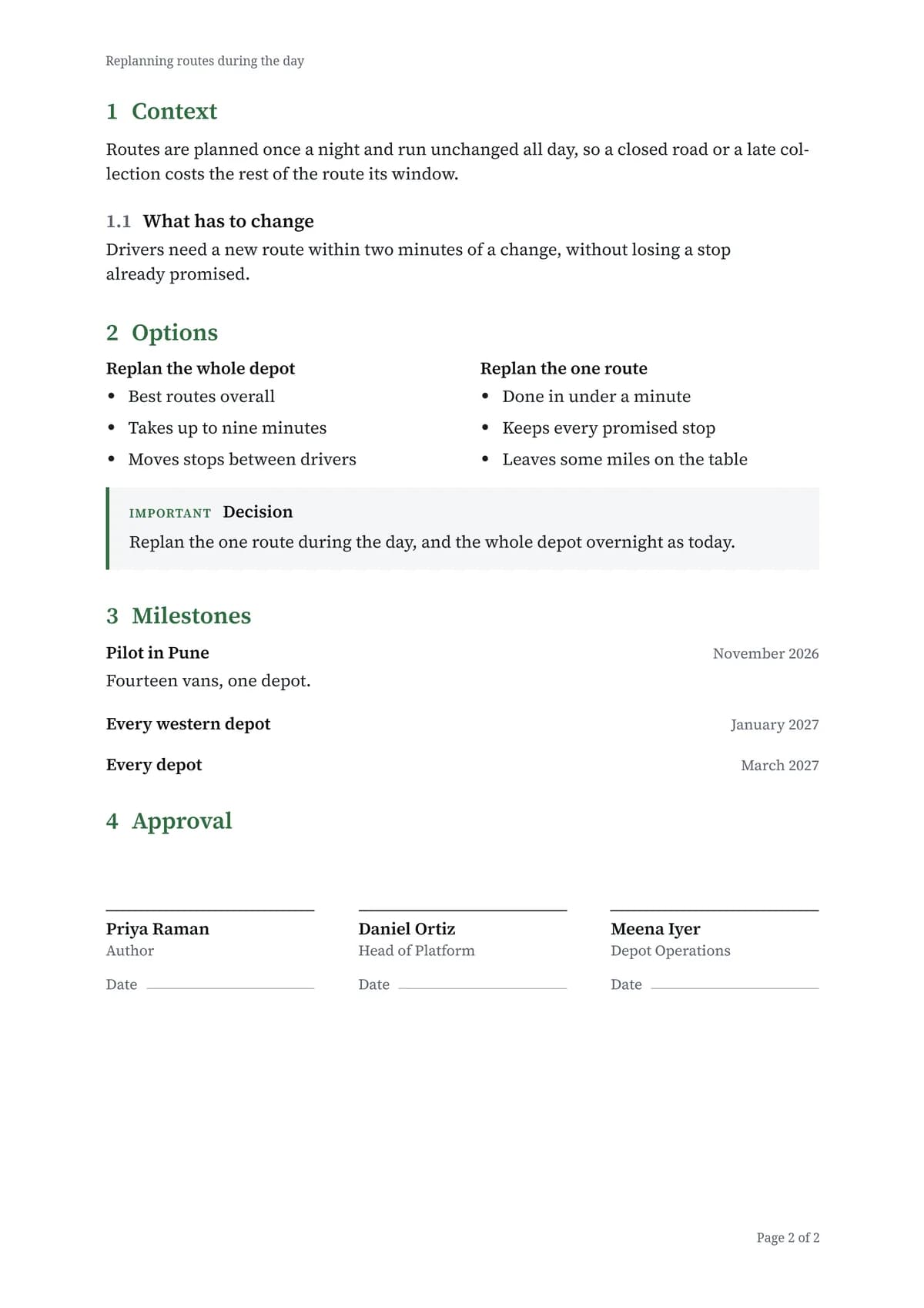
White pages, the title at the top of the first page, and writing that runs on from one page to the next. Figures sit in tables closed by their totals, jobs and milestones carry their dates, and a quote can close with lines to sign. Ask for a modern typeface or a classic serif, and for headings in navy or a colour of your own, such as your brand's.
Bigger jobs
One request, many hands.
Hand it something that would take you an afternoon and it works out the steps, sets several helpers going at the same time, and brings it all back as one answer.
Your call
Nothing changes without your yes.
Looking things up happens straight away, so it stays useful. But the moment it wants to change something, or to open a file it found online, it stops, shows you in full what it is about to do, and waits. When it suggests several things, you choose which go ahead, and the rest simply don't happen. Once you trust it with a job, you can let it get on with that one by itself.
- You see each change in full before it happens
- When it suggests several things, pick the ones that go ahead
- Let it get on with a job by itself once you're ready
- Some connections can only look, and can never change a thing
It starts without being asked
Early accessSome work shouldn't wait for you.
Work starts three ways: when you ask, when the clock says so, or the moment something changes in an app you've connected — mail from a particular person, a meeting moved, something said in a chat, a build broken, a sign-in that looks wrong. Choose the moment, narrow it to what actually matters, and pick who answers it.
- Moments to wait for across Microsoft 365, GitHub and Microsoft Entra ID
- Only a real change starts anything, narrowed to what matters to you
- A meeting that repeats is understood as one, so a nudge can repeat with it
- It stays quiet when there is nothing worth telling you
Yours to set up
Tell it what to do, and when.
Helpers you build by talking
Say what you want one to do and when it should do it, and it's made. Have it email you, and the result arrives ready to read in your inbox, with a link to the rest if it runs long. Change what it does from its own page, or ask in chat to change its tools, when it runs or where its results go — and set it going yourself whenever you like.
Helpers that hand work to each other
Line them up so each one picks up where the last left off. The whole line runs when you ask, at a time you choose, or the moment something happens.
Nudges in your own words
Say what to send you and how often. It arrives by email, or in a chat you've connected, and you can change or pause it whenever you like.
Ready-made agents
Early accessOr start from one we've already built.
Pick a ready-made agent for a common job — a briefing before your day starts, the replies you're still waiting on, a week of LinkedIn posts — and it's set up in a couple of taps, schedule and all. Others start the moment something happens: a new issue in your GitHub projects, a broken build, an important email. Most don't stop at telling you: they get the replies, posts and comments ready, and only the ones you approve go out. From then on, it's yours to change.
- Each one says what it needs and when it runs
- It gets the work ready, and only what you approve goes ahead
- Some are a few agents that work in turn, set up in one go
- Some start the moment something happens, like a new issue or an important email
- Your own copy, to change however you like
- Add one on the website or from your phone
In your apps
A few things people ask for.
Connect an app and just ask — out loud or by typing.
If you look after code, cloud or accounts, there is a part of the integrations page written for you. For technical teams
How it works.
Only if you let it. Looking things up happens straight away; anything it would change, and any file it found online and wants to open, stops and waits for your yes, and you see exactly what it plans to do first. Once you trust it with a job you can let it get on with that one by itself. Some connections, like Microsoft Entra ID, can only look and can never change a thing.
Mail, calendar and tasks in Microsoft 365 and Google Workspace; your code and the work around it in GitHub; what is running in Microsoft Azure and what it costs; who signed in, in Microsoft Entra ID; the rules your organisation's mail follows, in Microsoft Exchange; how your site is found and used in Google Search Console and Google Analytics; your locations in Google Business Profile; and posting in LinkedIn. Open the integrations page to see each one.
Answers drawn from your own documents list the documents they used — each one once, however many times it was quoted. Open one and you'll see the exact wording behind the answer and the page it sits on, and you can open the document itself. Documents in SharePoint stay where they already live, and Dewiride AI never keeps a copy of them. Files you upload are kept in your account, checked for malware before they're read, and deleted when you remove them.
It searches the public web, reads the pages it finds, and answers from those — naming each page underneath so you can check for yourself. When a link leads to a file — a PDF, a Word document, a PowerPoint deck, a spreadsheet or a picture — it reads that too and names the file the same way, though not files in the old .doc, .xls or .ppt formats. You can turn that off in one chat, for one agent, or for everything you start from now on.
Yes, once you have set that up. Pick a moment in a connected app to wait for — mail from a particular person, a meeting moved, a build broken — narrow it down to what matters, and choose who answers it. Or add a ready-made agent that already knows what to wait for, such as a new issue or an important email. It stays quiet when there is nothing worth telling you.
Yes. Say what the slides are about and who they are for, and it writes them and hands you a PowerPoint file to open, edit and send on. Each slide is laid out to suit what is on it, charts open to a grid you can change, and any photographs it uses are free to use and credited on a page at the end. Ask for one of the three looks by name if you want a particular one. It appears under the answer and stays in your files until you delete it.
Yes. Ask for a report, a proposal, a quote, a résumé or a letter, say who it is for, and it writes it and hands you a PDF to print or send on. It is laid out like a printed one: white pages, the title at the top of the first page, numbered pages, and a contents page when a long one needs it. Ask for a modern typeface or a classic serif, and for headings in navy or a colour of your own, such as your brand's. Tables closed by their totals, charts drawn from your figures, jobs and milestones with their dates, highlighted notes, lines to sign and photographs that are free to use sit where they belong, and the photographs are credited at the end. It comes on A4 or US Letter, appears under the answer and stays in your files until you delete it. In the chat where it made you a deck, it can also turn that deck into a PDF, in the deck's own look.
See what it can do for you.
Join the waitlist for early access. We send out new invitations every week.
Invite-only early access. No spam.